Release Notes
February 2019
What's New
In our first release of 2019, we are announcing General Availability of our LDAP Sync Service as well as a new feature: single sign-on setup using Active Directory Federation Services (ADFS). Our fully-functional LDAP Sync Service is now out of beta and can be installed to an on-prem network environment with Active Directory configured. It allows an admin to pre-populate KACE® Cloud MDM with their user database. We’ve also added Active Directory Federation Services as a new access protocol option that is available when setting up single sign-on.
In addition to the GA of LDAP and the ADFS option, we are also introducing several feature enhancements:
- Additional device enrollment status codes.
- Ability to delete one or more devices with a status of unenrolled, unenrolling, or failed.
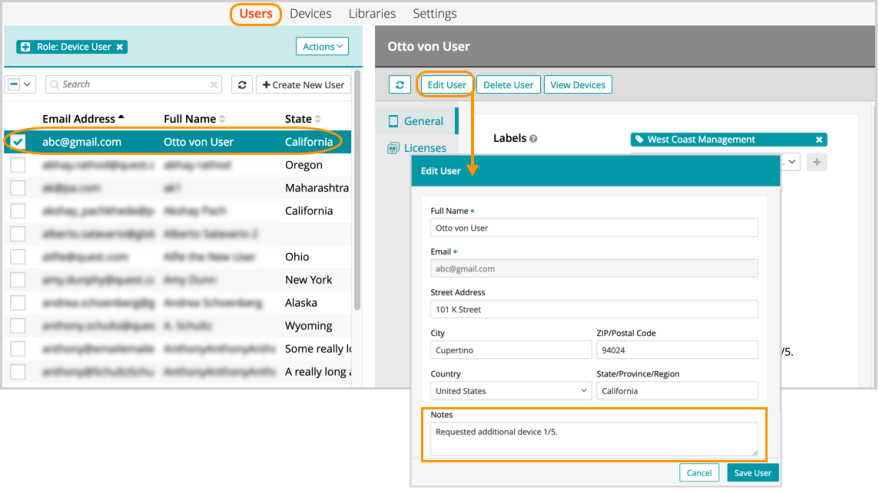
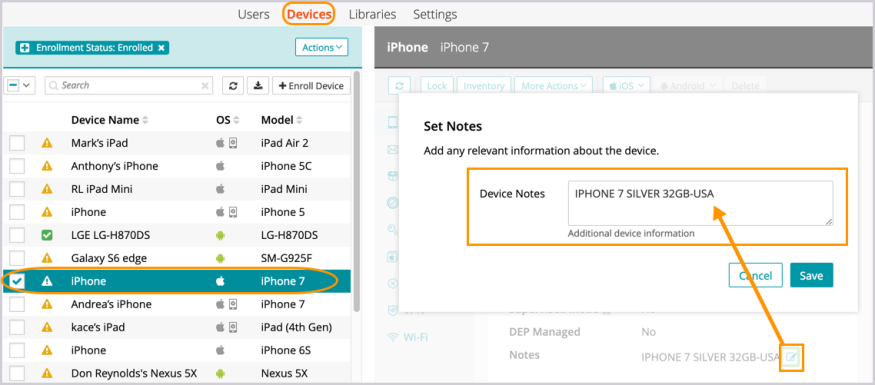
- Note fields for use when managing both users and devices.
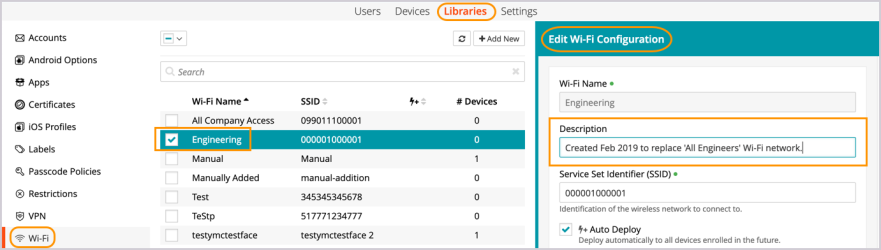
- New description field for Wi-Fi configurations.
General Availability: LDAP Sync Service
After the success of our LDAP Import Tool beta, we’re excited to introduce our new LDAP Sync Service. The service provides a continuous one-way sync from your active directory to KACE Cloud MDM. Once the LDAP Sync Service is installed to an on-prem network environment with Active Directory, administrators can pre-populate KACE Cloud MDM with their user database; select users and attributes, as well as customize attributes and adjust settings to fit requirements.
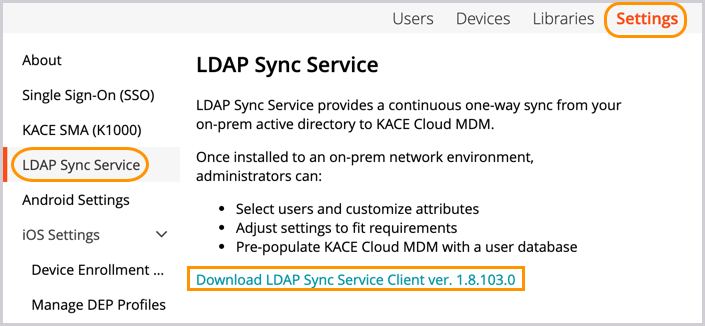
For full instructions, see LDAP Sync Service in documentation.
New Feature: Single Sign-On Using ADFS
KACE Cloud MDM customers can now use ADFS when setting up single sign-on in Windows environments. ADFS allows identity information sharing outside of a company’s network, while adding an additional layer of security beyond a third party active directory. New fields in the SAML Settings form allow for ADFS configuration, as shown below.
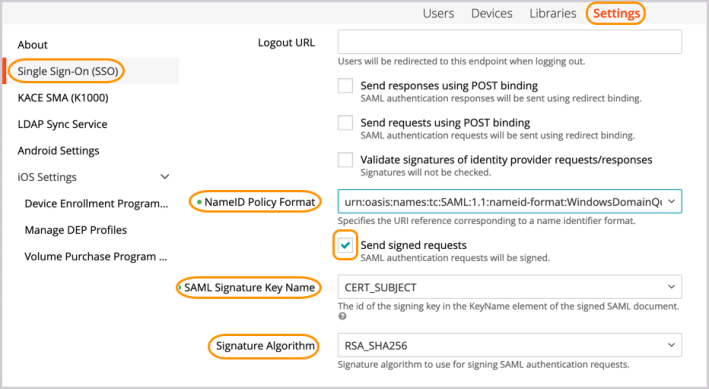
For full instructions, see SAML - Active Directory Federation Service in documentation.
Feature Enhancements
With this release, we’ve also introduced the following feature enhancements and functionality to the product:
Additional Device Enrollment Status Codes
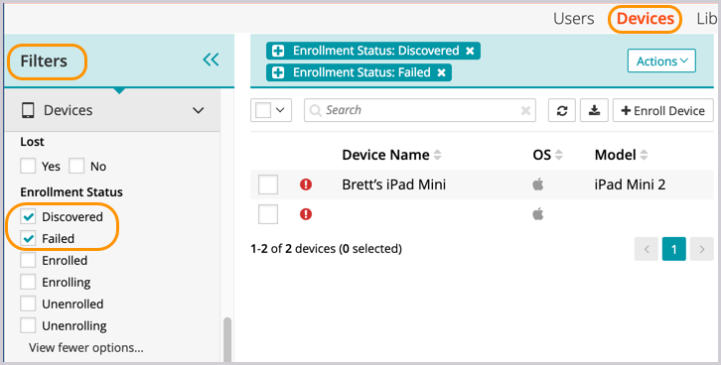
Three new enrollment status codes have been added to the Device filter options: Failed, Discovered, and Deleting. Failed indicates a device on which an enrollment was never completed. Discovered applies only to DEP-managed devices. Once KACE Cloud MDM discovers a new device in a DEP account, the device will be imported with the status of ‘Discovered’. The status of Deleting goes into effect once an administrator chooses to delete one or more non-DEP-managed devices from inventory.
Delete Select Devices
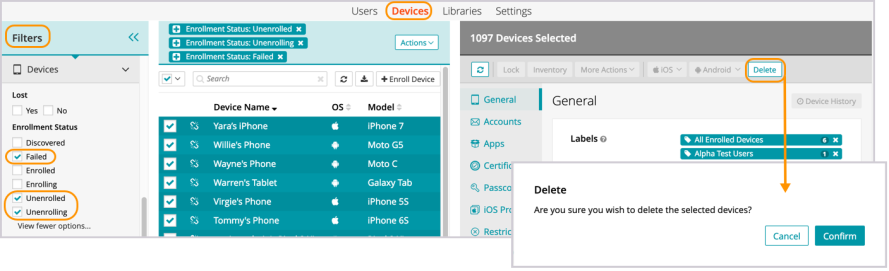
Admins can now completely remove one or more devices from inventory that fall under the status of Unenrolled, Unenrolling, or Failed. Once an administrator chooses Delete, the device(s) are assigned a status of ‘Deleting’ until the process has completed. This function can be especially helpful when managing unresponsive devices.
The delete device functionality is only available for non-DEP-managed devices.
Note Fields for Users and Devices
Administrators will find a new notes section when viewing user details under Edit Settings. When viewing devices, the new notes field can be found immediately on the details page after selecting a device. These fields can be useful when documenting special details and reminders that may apply to one or more users or devices. (See screenshots below.)
In the case of DEP-managed devices, information will automatically populate a device’s notes field, but the field can still be edited by the administrator.
Add Descriptions for Wi-Fi Configurations
Admins now have the ability to add a description for each Wi-Fi configuration. Comments in the Description field can be added during the creation of a new Wi-Fi setup, or after a Wi-Fi setup has been established using the Edit function.
Known Issues
Role Management and SSO Configuration
If user role assignment is set to Automatic during SSO Configuration, a manual attempt to update an individual user's role via the Users > Edit User path may appear possible, but will be overwritten by the original SSO Configuration. To resolve, the configuration setting can be changed to Manual, which will then enable editing of individual user roles.
Android-Specific Considerations
Paid App Deployment to Multiple Devices with Same User
When deploying paid apps to devices, if an app is deployed to multiple devices with the same user, the license count that we show will be improperly decremented. Those licenses are still available and going to settings and clicking sync will update the licenses to their true count.
Gmail App
Android devices require the Gmail app to be installed in order to use the email account configurations.
Set and Clear Passcode Commands
The set and clear passcode functions are different in Android N and later. On versions prior to N, an administrator could set or clear the passcode as desired. On Android N and later, the passcode can only be set on devices that do not already have a passcode set, and passcodes cannot be cleared. The user interface does not currently warn users who are attempting to set or clear a passcode on Android N or later, but an error message will appear. Note that attempting to clear a passcode will also fail if there is a policy in place that requires use of a passcode to do so.
iOS-Specific Considerations
Factory Reset - Apple iOS iCloud Account Lock
When resetting an Apple iOS device back to factory defaults, the device will remain locked to the associated iCloud account. To prevent this from happening, before resetting the device, manually turn off the 'Find my phone' feature on the iPhone.
Additional Resources
Getting Started with KACE Cloud MDM
© 2019 Quest Software Inc.
ALL RIGHTS RESERVED.
This guide contains proprietary information protected by copyright. The software described in this guide is furnished under a software license or nondisclosure agreement. This software may be used or copied only in accordance with the terms of the applicable agreement. No part of this guide may be reproduced or transmitted in any form or by any means, electronic or mechanical, including photocopying and recording for any purpose other than the purchaser’s personal use without the written permission of Quest Software Inc.
The information in this document is provided in connection with Quest Software products. No license, express or implied, by estoppel or otherwise, to any intellectual property right is granted by this document or in connection with the sale of Quest Software products. EXCEPT AS SET FORTH IN THE TERMS AND CONDITIONS AS SPECIFIED IN THE LICENSE AGREEMENT FOR THIS PRODUCT, QUEST SOFTWARE ASSUMES NO LIABILITY WHATSOEVER AND DISCLAIMS ANY EXPRESS, IMPLIED OR STATUTORY WARRANTY RELATING TO ITS PRODUCTS INCLUDING, BUT NOT LIMITED TO, THE IMPLIED WARRANTY OF MERCHANTABILITY, FITNESS FOR A PARTICULAR PURPOSE, OR NON-INFRINGEMENT. IN NO EVENT SHALL QUEST SOFTWARE BE LIABLE FOR ANY DIRECT, INDIRECT, CONSEQUENTIAL, PUNITIVE, SPECIAL OR INCIDENTAL DAMAGES (INCLUDING, WITHOUT LIMITATION, DAMAGES FOR LOSS OF PROFITS, BUSINESS INTERRUPTION OR LOSS OF INFORMATION) ARISING OUT OF THE USE OR INABILITY TO USE THIS DOCUMENT, EVEN IF QUEST SOFTWARE HAS BEEN ADVISED OF THE POSSIBILITY OF SUCH DAMAGES. Quest Software makes no representations or warranties with respect to the accuracy or completeness of the contents of this document and reserves the right to make changes to specifications and product descriptions at any time without notice. Quest Software does not make any commitment to update the information contained in this document.
If you have any questions regarding your potential use of this material, contact:
Quest Software Inc.
Attn: LEGAL Dept.
4 Polaris Way
Aliso Viejo, CA 92656
Refer to our website (www.quest.com) for regional and international office information.
Patents
Quest Software is proud of our advanced technology. Patents and pending patents may apply to this product. For the most current information about applicable patents for this product, please visit our website at www.quest.com/legal.
Trademarks
Quest and the Quest logo are trademarks and registered trademarks of Quest Software Inc. in the U.S.A. and other countries. For a complete list of Quest Software trademarks, please visit our website at www.quest.com/legal. All other trademarks, servicemarks, registered trademarks, and registered servicemarks are the property of their respective owners.